
Tables in HTML
Tables are used to organize and display data in a structured, easy-to-read format. HTML provides the <table> tag to create tables directly on a webpage, helping users understand complex information through rows and columns. Inside a table, developers use <tr> for table rows, <td> for data cells, and <th> for header cells.
To enhance clarity, HTML also supports the <caption> tag for adding titles to tables, and <thead>, <tbody>, and <tfoot> for grouping different parts of the table. These elements work together to create clean, organized layouts that present information clearly, making it easier for users to compare, analyze, and interpret data on any screen.
What is a Table in HTML?
In HTML, we use the <table> tag to create a table. A table is made up of rows and columns. Rows go from left to right. Columns go from top to bottom.
Each row in the table is created using the <tr> tag.
Each cell inside a row is created using the <td> tag.
If you want to show headings like “Name”, “Age”, “Course”, etc., you use the <th> tag instead of <td>.
It means “table heading”.

Basic Example of Table:
<table>
  <tr>
    <th>Name</th>
    <th>Age</th>
    <th>City</th>
  </tr>
  <tr>
    <td>Ravi</td>
    <td>25</td>
    <td>Delhi</td>
  </tr>
  <tr>
    <td>Sana</td>
    <td>23</td>
    <td>Mumbai</td>
  </tr>
</table>
What is happening here?
<table>starts the table.- First
<tr>makes the heading row. - Inside that, we used
<th>for each heading. - The next
<tr>makes a data row, and we used<td>for data inside it.
Tags Used in Tables
Let’s understand each tag.
1. <table>
This tag is the main container for the table.
2. <tr> (Table Row)
This tag is used to create a row inside the table.
3. <td> (Table Data)
This tag is used inside <tr> to create a cell for actual data.
4. <th> (Table Heading)
This tag is like <td>, but it shows the text in bold and centered by default. It is used only for headings.
Table Sections: <thead>, <tbody>, <tfoot>
These tags are used to divide the table into three parts.
1. <thead> – Table Head
This tag is used to group the top rows that contain the headings of the table. It helps browsers and screen readers understand that this part is the table’s title section.
2. <tbody> – Table Body
This tag is used to group the main rows of data in the table. It contains all the information that belongs to the table except headings and footers.
3. <tfoot> – Table Footer
This tag is used to group the bottom rows of the table. It is mostly used for totals, summaries, or any final notes.
Example:
<table>
  <thead>
    <tr>
      <th>Item</th>
      <th>Price</th>
    </tr>
  </thead>
  <tbody>
    <tr>
      <td>Pen</td>
      <td>10</td>
    </tr>
    <tr>
      <td>Notebook</td>
      <td>50</td>
    </tr>
  </tbody>
  <tfoot>
    <tr>
      <td>Total</td>
      <td>60</td>
    </tr>
  </tfoot>
</table>
Table Headers and Captions
<caption>
This tag is used to give a title to your table. It should be written just after the <table> tag.
Example:
<table border=”1” width=”20%”>
  <caption>Student Details</caption>
  <tr>
    <th>Name</th>
    <th>Marks</th>
  </tr>
  <tr>
    <td>Riya</td>
    <td>90</td>
  </tr>
</table>
The text “Student Details” will appear as a heading above the table.
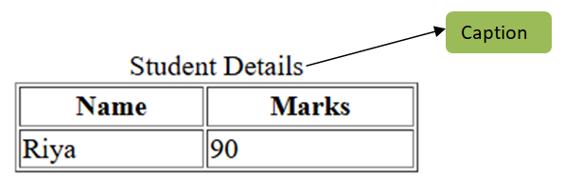
Table Attributes
1. <table> Tag – Attributes
a) border
Adds a border to the table.
Example:
<table border="1">Values:
1(thin border)2,3etc. (thicker border)
b) cellspacing
Sets space between the cells (outside the cell box).
Example:
<table cellspacing="5">Values:
- Any number in pixels (like
5,10, etc.)
c) cellpadding
Sets space inside the cell (between cell content and cell border).
Example:
<table cellpadding="10">Values:
- Any number in pixels
d) width
Sets the width of the table.
Example:
<table width="100%">Values:
- In pixels:
600 - In percentage:
100%,50%
e) height
Sets the height of the table.
Example:
<table height="300">Values:
- In pixels (like
300,500) - In percentage (like
100%)
f) align (Not supported in HTML5)
Aligns the whole table on the page (left, center, right).
Example:
<table align="center">Values:
left,center,right
g) bgcolor (Not supported in HTML5, but still works)
Sets background color of the table.
Example:
<table bgcolor="lightblue">Values:
- Color name (
red,blue,lightgray) - Hex color (
#f1f1f1)
h) bordercolor (Old, not in HTML5)
Changes the color of the border.
Example:
<table border="1" bordercolor="green">2. <tr> Tag – Attributes
a) align (Old)
Aligns the content of the cells in the row horizontally.
Example:
<tr align="center">Values:
left,center,right
b) valign (Old)
Aligns the cell content vertically inside the row.
Example:
<tr valign="top">Values:
top,middle,bottom,baseline
c) bgcolor (Old)
Sets background color of the row.
Example:
<tr bgcolor="yellow">3. <td> and <th> Tags – Attributes
These attributes apply to both <td> (data) and <th> (heading) cells.
a) colspan
Merges cells horizontally across columns.
Example:
<td colspan="2">b) rowspan
Merges cells vertically across rows.
Example:
<td rowspan="3">c) align (Old)
Aligns content inside the cell horizontally.
Example:
<td align="right">Values:
left,center,right,justify
d) valign (Old)
Aligns content vertically inside the cell.
Example:
<td valign="middle">e) width and height
Set size of individual cells.
Example:
<td width="200" height="50">4. <caption> Tag – Attributes
a) align (Old)
Aligns the caption (title of the table) on the table.
Example:
<caption align="bottom">Values:
top(default),bottom,left,right
Most Important Questions
1. What is the correct way to structure a table using <thead>, <tbody>, and <tfoot>? Why is this structure useful?
The correct way is to place the header rows inside <thead>, the main data inside <tbody>, and the summary or total row inside <tfoot>. This structure helps browsers and screen readers understand the meaning of each part of the table. It also helps with printing and large data tables by repeating the header automatically on each page.
2. How do colspan and rowspan work, and what happens if you use them incorrectly?
colspan is used in <td> or <th> to make a cell spread across multiple columns.
rowspan makes a cell spread across multiple rows.
If you use them without adjusting the other cells properly, the table layout can break or become misaligned. This happens because the browser tries to fit cells into a grid that no longer has equal rows and columns.
3. What is the purpose of the <caption> tag in a table?
The <caption> tag gives a title to the table and is always placed right after the opening <table> tag. It helps users and screen readers understand what the table is about. For example, a caption like “Student Marks Table” explains the purpose of the data before even reading it.
4. What is the difference between <th> and <td>?
<th> is used for table headers and by default makes the text bold and centered.
<td> is used for table data and keeps the text normal and left-aligned by default.
Also, screen readers treat <th> as a label for the row or column, which helps with accessibility.
5. Can you nest one table inside another table? If yes, what are the problems with it?
Yes, HTML allows nested tables, meaning you can put a <table> inside a <td> of another table.
However, it makes the code hard to read, harder to maintain, and can lead to layout issues, especially when you mix up rows and columns. It’s better to avoid nested tables unless absolutely necessary.
6. What is the difference between cellspacing and cellpadding?
cellspacing controls the space between cells (outside the cell borders).
cellpadding controls the space inside the cell, between the content and the cell border.
These are used inside the <table> tag as attributes. They only work in older HTML versions and are now replaced by CSS in modern HTML5.
Example:
<table cellspacing="5" cellpadding="10">7. What happens if you use multiple <thead> or <tfoot> tags in a table?
A valid HTML table can have only one <thead> and one <tfoot>.
Using more than one of them is not valid HTML and may be ignored or handled differently by browsers. It also breaks accessibility and screen reader support, so it’s not recommended.
8. What is the use of the scope attribute in the <th> tag?
The scope attribute tells whether the <th> is a heading for a row, column, or group.
This is very useful for screen readers to connect table headers with their related cells.
Example:
<th scope="col">Subject</th>
<th scope="row">Student A</th>
Values:
- col: heading for a column
- row: heading for a row
- colgroup, rowgroup: for groups of columns or rows
9. What is the purpose of the <colgroup> and <col> tags in an HTML table?
<colgroup> defines a group of columns, and <col> is used inside it to apply rules to specific columns.
These tags don’t hold content but are used for structure. While in pure HTML they don’t change the visual table, they help organize complex tables and were used with attributes like span.
Example:
<table>
  <colgroup>
    <col span="1">
    <col span="2">
  </colgroup>
  ...
</table>
10. What are the limitations of HTML tables without CSS?
Without CSS, tables can be styled only using old attributes like border, width, cellspacing, and cellpadding. You can’t control text color, font, or advanced layout.
Also, making the table responsive or scrollable is not possible using pure HTML. So, for modern design and mobile-friendly behavior, CSS is needed even though the structure stays in HTML.