
Input tag in HTML
The <input> tag in HTML is used to create interactive fields within a form, allowing users to enter data that can be submitted to a server.
It is a self-closing tag and supports a wide variety of type attributes such as text, email, password, number, checkbox, radio, and more, each designed to capture specific kinds of input.
Developers can enhance usability by adding attributes like placeholder, required, value, name, id, and autocomplete.
Click to Enroll Free HTML Course
What is an Input Field?
It is a self-closing tag used inside forms to take user inputs like text, number, email, password, etc.
An input field is a box or UI element on a webpage that allows users to enter or select data. It is created using the <input> tag.
The type of input is decided by the type attribute in the <input> tag. Different types give different ways to enter data.
Basic Structure of <input> Tag:
<input type="text" name="username" placeholder="Enter your name">Types of Input Fields
| # | Type | Description | Example |
| 1 | text | Single-line text box for names, city, etc. Accepts letters, numbers, symbols. | <input type=”text” name=”username”> |
| 2 | password | Hides characters with dots/stars. Used for secure inputs. | <input type=”password” name=”userpass”> |
| 3 | Accepts email format. Validates structure like @, .com, etc. | <input type=”email” name=”useremail”> | |
| 4 | number | Only allows numeric input with arrows for increase/decrease. Supports min and max. | <input type=”number” name=”age” min=”1″ max=”100″> |
| 5 | tel | Used for phone numbers. Mobile devices show numeric keypad. | <input type=”tel” name=”phone”> |
| 6 | url | Input for website address. Validates https:// structure. | <input type=”url” name=”website”> |
| 7 | date | Shows calendar for date selection. | <input type=”date” name=”birthday”> |
| 8 | time | Time selector for hours and minutes. | <input type=”time” name=”appointment”> |
| 9 | datetime-local | Select both date and time (without time zone). | <input type=”datetime-local” name=”meeting”> |
| 10 | month | Select only month and year. | <input type=”month” name=”subscription”> |
| 11 | week | Select week number and year (ISO standard). | <input type=”week” name=”weekreport”> |
| 12 | checkbox | Small square box to select/deselect options. Multiple checkboxes can be selected. | <input type=”checkbox” name=”subscribe” value=”yes”> |
| 13 | radio | Circle used to select one option from many. Must share same name attribute to group them. | <input type=”radio” name=”gender” value=”male”> <input type=”radio” name=”gender” value=”female”> |
| 14 | file | Opens file chooser. Supports file type restrictions via accept. | <input type=”file” name=”photo” accept=”image/*”> |
| 15 | submit | Form submit button. Sends data to server or next page. | <input type=”submit” value=”Send”> |
| 16 | reset | Clears all form fields and resets to initial values. | <input type=”reset” value=”Clear”> |
| 17 | button | Custom button used with JavaScript. No default function. | <input type=”button” value=”Click me”> |
| 18 | hidden | Hidden from users. Used to pass invisible data. | <input type=”hidden” name=”userid” value=”12345″> |
| 19 | color | Opens color picker. Value stored in hex (e.g., #ff0000). | <input type=”color” name=”favcolor”> |
| 20 | range | Slider for numeric input between a range using min, max, and step. | <input type=”range” name=”volume” min=”0″ max=”100″> |
Complete HTML Form Example Using All Input Types
<form action="submit.php" method="post">

  <!-- 1. Text -->
  <label>Text:</label>
  <input type="text" name="username" placeholder="Enter your name">
  <br><br>
  <!-- 2. Password -->
  <label>Password:</label>
  <input type="password" name="password" placeholder="Enter your password">
  <br><br>


  <!-- 3. Email -->
  <label>Email:</label>
  <input type="email" name="email" placeholder="Enter your email">
  <br><br>


  <!-- 4. Number -->
  <label>Number:</label>
  <input type="number" name="age" min="1" max="120">
  <br><br>

  <!-- 5. Tel -->
  <label>Phone:</label>
  <input type="tel" name="phone" placeholder="Enter phone number">
  <br><br>


  <!-- 6. URL -->
  <label>Website:</label>
  <input type="url" name="website" placeholder="https://example.com">
  <br><br>


  <!-- 7. Date -->
  <label>Date:</label>
  <input type="date" name="birthdate">
  <br><br>


  <!-- 8. Time -->
  <label>Time:</label>
  <input type="time" name="meeting_time">
  <br><br>


  <!-- 9. Datetime-local -->
  <label>Date & Time:</label>
  <input type="datetime-local" name="appointment">
  <br><br>


  <!-- 10. Month -->
  <label>Month:</label>
  <input type="month" name="birthmonth">
  <br><br>


  <!-- 11. Week -->
  <label>Week:</label>
  <input type="week" name="week">
  <br><br>


  <!-- 12. Checkbox -->
  <label>Accept Terms:</label>
  <input type="checkbox" name="terms" value="accepted"> Yes
  <br><br>


  <!-- 13. Radio -->
  <label>Gender:</label>
  <input type="radio" name="gender" value="male"> Male
  <input type="radio" name="gender" value="female"> Female
  <br><br>


  <!-- 14. File -->
  <label>Upload File:</label>
  <input type="file" name="upload_file">
  <br><br>


  <!-- 15. Color -->
  <label>Favorite Color:</label>
  <input type="color" name="color">
  <br><br>


  <!-- 16. Range -->
  <label>Volume (0 to 100):</label>
  <input type="range" name="volume" min="0" max="100">
  <br><br>


  <!-- 17. Hidden -->
  <input type="hidden" name="user_id" value="123456">
  <!-- No label because it's hidden -->


  <!-- 18. Button (does nothing alone) -->
  <label>Button (Custom):</label>
  <input type="button" value="Click Me">
  <br><br>


  <!-- 19. Submit -->
  <input type="submit" value="Submit Form">
  <br><br>


  <!-- 20. Reset -->
  <input type="reset" value="Reset Form">

</form>
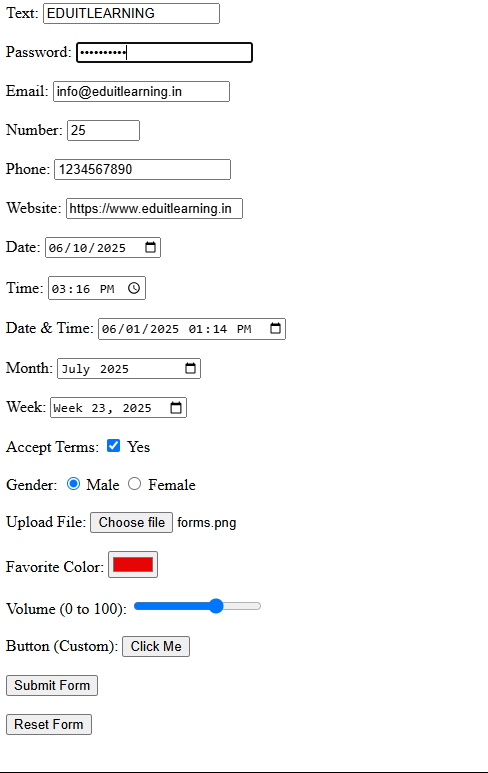
Most Important Questions
1. How does the type attribute change the behavior of an <input> tag?
The type attribute changes the input’s behavior and UI. For example:
textlets user type any text.passwordmasks characters with dots.numberonly allows numbers and shows arrows to increase/decrease.checkboxshows a square box for yes/no or multiple select.radioshows round buttons, only one selectable per group.
Each type controls input restrictions and how the input looks or behaves without extra scripting.
2. Why do checkboxes and radio buttons use the value attribute differently from text inputs?
For text inputs, the value is the actual text inside the input box. For checkboxes and radios, the value represents what is submitted or logically chosen when the box/button is checked or selected. If unchecked, the value is ignored. So, value in checkboxes/radios defines the meaning of that option, not the typed content.
3. What happens if you omit the value attribute in <input type=”checkbox”> or <input type=”radio”>?
If you don’t specify a value, the default submitted value is “on” when the checkbox or radio is checked. Without a value attribute, the checkbox/radio still works visually but sends “on” as data.
4. Can an <input> element have multiple types simultaneously?
No. The type attribute accepts only a single valid value per input. Multiple types like type="text number" are invalid and the browser falls back to default type="text". Only one input type per element is allowed.
5. What is the difference between <input type="text"> and <input type="search">?
type="search" is similar to text but optimized for search input. Browsers may show a clear “×” button to clear the input, and on some devices, it may have slightly different keyboard or accessibility features. Functionally both accept text, but search is semantically for search queries.
6. What role does the disabled attribute play on an <input>?
disabled makes the input non-editable, non-focusable, and grayed out. The user cannot type, select, or interact with it. It’s a visual and functional lock on the input, indicating it’s inactive.
7. What happens if an <input> has the readonly attribute?
readonly makes the input value non-editable but still selectable and focusable. The user can highlight and copy the content but can’t change it. Unlike disabled, the input looks active and participates in tab navigation but prevents typing.
8. How does the maxlength attribute influence an <input type="text">?
maxlength sets the maximum number of characters the user can type. The input won’t accept more characters beyond this limit. This limits user input length right at the input level without scripting.
9. How do min and max attributes affect inputs of type number, range, date, or time?
min and max define the allowed value range for inputs like numbers, ranges, dates, or times. The input UI enforces these constraints by restricting user selection or disabling values outside the range. For example, min="1" and max="10" restrict values to between 1 and 10.
10. Can an <input> tag trigger different keyboards on mobile devices?
Yes. Mobile browsers show keyboards optimized for the input type:
type="email"shows the keyboard with @ and .com keys.type="tel"shows the numeric keypad.type="number"shows number-only keyboard.
type="text" shows a full alphanumeric keyboard.
This improves user experience by showing relevant keyboards automatically.