
Form Components in HTML
HTML Form Components gives us many form elements to collect different types of input from users. For long answers, we use <textarea>, which shows a big text box. For dropdown menus, we use <select> along with <option> to add choices. If we want to group some options inside the dropdown, we use <optgroup>.
To create a clickable button, we use <button>. If we want to give users suggestions while typing, we use <datalist>. To show some result or value from a calculation, we use <output>.
For showing progress or level, we use <meter> (like battery level) and <progress> (like file upload progress). All these tags help in building smart and easy-to-use forms.
1. <textarea>
It creates a big text box where users can type multiple lines of text.
Example:
<textarea name=”message” rows=”5″ cols=”30″>Type here…</textarea>
- Unlike
<input type="text">, this allows paragraphs or multiple lines. - You can set how tall or wide it is using
rowsandcols. - You can write default text between the opening and closing tag.
- Can be used for feedback, comments, messages, etc.
Attributes of textarea
| Attribute | Example Value | Explanation (Very Simple Words) |
| name | “comment” | Name of textarea. Used when form is submitted. |
| rows | “5” | Number of text lines (height). |
| cols | “30” | Width in characters. |
| placeholder | “Write here…” | Shows light text before user types. |
| maxlength | “500” | Maximum characters allowed. |
| required | required | Makes textarea must-fill before submit. |
| readonly | readonly | User can see text but not change it. |
| disabled | disabled | Textarea is shown but cannot be used. |
| wrap | “soft” / “hard” | Controls how text wraps (soft = no line break sent). |
2. <select>
It creates a drop-down list from which the user can choose one or more options.
Example:
<select name="country">
  <option>India</option>
  <option>USA</option>
</select>
- It holds multiple
<option>elements. - By default, it allows selecting only one item.
- If you want to allow selecting more than one, use
multiple.

Attributes of select element
| Attribute | Example Value | Explanation |
| name | “country” | Name used when sending form data. |
| multiple | multiple | Allows selecting more than one option. |
| size | “4” | Shows 4 options without scrolling. |
| required | required | Must select something before form can be submitted. |
| disabled | disabled | Makes dropdown unclickable. |
3. <option>
It creates a single choice inside a <select> drop-down.
Example:
<select>
  <option value="html">HTML</option>
  <option value="css">CSS</option>
</select>valueis the data sent when the form is submitted.- The text between
<option>tags is what the user sees. - You can use
selectedto make an option selected by default.
Attributes of option element
| Attribute | Example Value | Explanation |
| name | “country” | Name used when sending form data. |
| multiple | multiple | Allows selecting more than one option. |
| size | “4” | Shows 4 options without scrolling. |
| required | required | Must select something before form can be submitted. |
| disabled | disabled | Makes dropdown unclickable. |
4. <optgroup>
It helps to group options inside a <select> into categories.
Example:
<select>
  <optgroup label="Frontend">
    <option>HTML</option>
    <option>CSS</option>
  </optgroup>
  <optgroup label="Backend">
    <option>PHP</option>
    <option>Node.js</option>
  </optgroup>
</select>
· label is the name of the group shown in the list.
· Makes long drop-downs easier to understand.
· Cannot be selected — it just groups the <option>.
Attributes of optgroup element
| Attribute | Example Value | Explanation |
| label | “Frontend” | Group title shown in dropdown. |
| disabled | disabled | Disables the whole group (all options inside). |
5. <button>
It creates a clickable button.
Example:
<button type=”submit”>Send</button>
· type can be:
submit: submits the formreset: resets form fieldsbutton: regular button for JavaScript
· Can include text, images, or icons.
· You can write the button label between <button>...</button>.
Attributes of button element
| Attribute | Example Value | Explanation |
| type | “submit” / “reset” / “button” | Defines what button does. Submit sends form. |
| name | “submitBtn” | Name used in form data. |
| value | “Send” | Value sent if form is submitted. |
| disabled | disabled | Cannot click the button. |
| autofocus | autofocus | Focuses on button when page loads. |
| form | “form1” | Links button to another form by ID. |
| formaction | “submit.php” | URL to submit form data (used with type=submit). |
6. <datalist>
It gives a list of suggested values that can appear while typing in an <input>.
Example:
<input list="browsers" name="browser">
<datalist id="browsers">
  <option value="Chrome">
  <option value="Firefox">
  <option value="Edge">
</datalist>- Connects to an
<input>using thelistattribute. - Gives auto-complete suggestions.
- User can still type a different value.
7. <meter>
It shows a value in a known range, like a score or strength meter.
Example:
<meter value=”4″ min=”0″ max=”10″>4 out of 10</meter>
- Good for showing strength levels like password strength, quiz scores, performance ratings, etc.
- Can include
low,high, andoptimumattributes to color-code the range based on the value: low: Shows the lower range. Browsers may display it in red.high: Shows the higher range. Browsers may display it in yellow/orange.optimum: Shows the ideal/target value. Browsers may highlight it in green.- Visual feedback is automatic in most browsers based on these values.
- It’s only for measurable values in a fixed range, like
min=0tomax=10. - Not meant for loading bars or file uploads — for that, use
<progress>instead. - Best when used with labels to make it meaningful for screen readers.
8. <progress>
The <progress> tag is used to show progress of a task that is running, like:
- File uploading
- Video buffering
- Quiz completion
- Page loading
- Installation or setup progress
Syntax
<progress value="40" max="100">40%</progress>This means 40% of the task is completed.
- It is perfect for showing the progress of a task where you know how much is completed out of the total.
- Browser automatically shows a progress bar (no CSS needed).
- If only
maxis given andvalueis missing, browser shows a loading effect. - It does not accept
low,high, oroptimumattributes — those are for<meter>only. - You can put text between the tags as a fallback (like 40%) if browser doesn’t support it.
Notes:
- If
valueis missing, the progress bar becomes indeterminate (browser shows a spinning or loading animation).
Example
<progress max="100"></progress>This is used when the system doesn’t know how much is completed yet.
Attributes of Progress element
| Attribute | Example Value | What It Does (Very Simple Words) |
| value | “40” | The current progress amount (how much is done) |
| max | “100” | The total amount (100 means 100%) |
<form action="/submit" method="post">

  <!-- Textarea -->
  <label for="feedback">Your Feedback:</label><br>
  <textarea id="feedback" name="feedback" rows="5" cols="50">Enter your feedback here...</textarea><br><br>

  <!-- Select with optgroup and option -->
  <label for="course">Select Your Course:</label><br>
  <select id="course" name="course">
    <optgroup label="Programming">
      <option value="java">Java</option>
      <option value="python">Python</option>
    </optgroup>
    <optgroup label="Web Development">
      <option value="html">HTML</option>
      <option value="css">CSS</option>
      <option value="js">JavaScript</option>
    </optgroup>
  </select><br><br>

  <!-- Datalist with input -->
  <label for="browser">Preferred Browser:</label><br>
  <input list="browsers" id="browser" name="browser">
  <datalist id="browsers">
    <option value="Chrome">
    <option value="Firefox">
    <option value="Edge">
    <option value="Safari">
  </datalist><br><br>

  <!-- Meter -->
  <label for="score">Quiz Score (out of 100):</label><br>
  <meter id="score" value="75" min="0" max="100" low="40" high="80" optimum="90">75</meter><br><br>

  <!-- Progress -->
  <label for="progress">Course Completion:</label><br>
  <progress id="progress" value="60" max="100">60%</progress><br><br>

  <!-- Output (for example purpose, not interactive here) -->
  <label>Total Marks (auto-calculated):</label><br>
  <output name="total" id="total">95</output><br><br>

  <!-- Submit Button -->
  <button type="submit">Submit Feedback</button>

</form>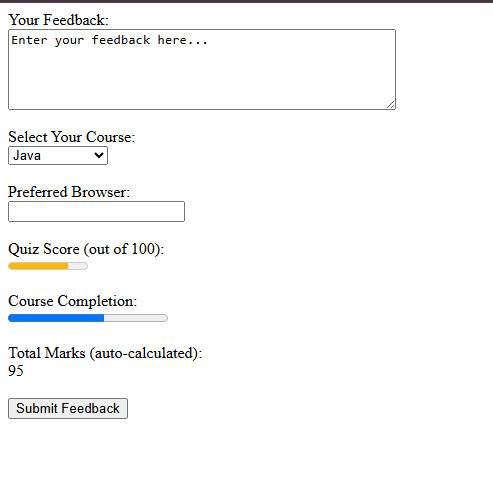
Most important Questions
1. What is the difference between <textarea> and <input type="text">, and when should you use <textarea> instead?
Both <textarea> and <input type="text"> are used to take text input from the user. However, <input type="text"> is for single-line input only, while <textarea> is for multi-line input like comments, addresses, or messages.
If the user is expected to write long or multiple sentences, <textarea> is the better choice.
2. Why does <textarea> not use the value attribute like other input elements?
The value of <textarea> is written between the opening and closing tags, not as an attribute.
For example:
<textarea>This is prefilled text</textarea>
This was designed this way because it supports multi-line default content, including line breaks and formatting. Putting all that in a value attribute would be messy and hard to read or maintain.
3. How does <select> differ from a group of <input type="radio"> or <input type="checkbox">?
<select> provides a dropdown list of options, which saves space and gives a cleaner interface, especially when there are many choices.
- If the user must select only one option, both
<select>and radio buttons work. - But if you need multiple selections,
<select multiple>is better than multiple checkboxes, especially when there are too many options.
4. Can <option> exist without being inside a <select> or <datalist>?
No. <option> must be inside either a <select> or a <datalist>.
On its own, an <option> tag has no effect. It’s a child tag that only works within a valid parent like <select> (dropdown menu) or <datalist> (auto-suggest input).
5. What is the purpose of <optgroup> and how does it help users?
<optgroup> is used to group related <option> elements under a label in a <select> dropdown.
This improves user experience by making it easier to navigate a long list.
Example:
<select>
  <optgroup label="Fruits">
    <option>Apple</option>
    <option>Banana</option>
  </optgroup>
  <optgroup label="Vegetables">
    <option>Carrot</option>
    <option>Tomato</option>
  </optgroup>
</select>
It visually separates and categorizes the choices.
6. What is the functional difference between <button> and <input type="submit">?
Both can be used to submit a form, but <button> is more flexible.
<input type="submit">can’t contain any inner HTML like icons or multiple elements.<button>can contain text, images, or even span tags.
Example:
<button><img src=”icon.png” alt=””> Submit</button>
So, if you need custom design or additional elements inside the button, use <button>.
7. How does <datalist> work and how is it different from <select>?
<datalist> provides a list of suggestions while typing inside an <input> element.
Unlike <select>, the user can ignore the suggestions and type their own value.
Example:
<input list="browsers">
<datalist id="browsers">
  <option value="Chrome">
  <option value="Firefox">
</datalist>
So <datalist> is for suggestions, not forced choices.
8. What is <output> used for and how does it differ from regular text elements like <span> or <div>?
<output> is used to show results calculated by a form or script. It is part of the form system and can be linked with inputs using the for attribute.
Unlike <span> or <div>, which are general-purpose containers, <output> is semantic — it tells browsers and screen readers that this is a result.
Example:
<output id="total">0</output>9. What is the difference between <meter> and <progress>?
Both are visual elements for showing data, but they have different use cases:
<meter>is used to show a value within a known range (e.g., battery level, score, temperature).<progress>is used to show progress of a task (e.g., file upload, download).
Also:
<meter>supportslow,high, andoptimumattributes for color indication.<progress>only supportsvalueandmaxand may show an indeterminate loading animation.
10. What happens when you remove the value attribute from a <progress> element?
If the value attribute is not present, the browser shows an indeterminate progress bar — this means it’s loading, but progress is unknown.
This is useful when the system doesn’t know how long the task will take.
Example:
<progressmax="100"></progress>
This shows a spinning or looping animation to indicate “in progress”.