
Form Grouping Elements
Form Grouping Elements, when a form is too long or has many fields, we can group related fields together using <fieldset>. It draws a box around the related inputs like name, email, etc., so it looks clean and easy to understand.
To give a name or title to that box, we use <legend>. It shows the heading of the group inside the box.
For example, if we have a form with two parts – Personal Details and Address – we can use two <fieldset> tags, and inside each, we put a <legend> like “Personal Info” and “Address”.
This helps users understand which part of the form they are filling and also makes the form look better.
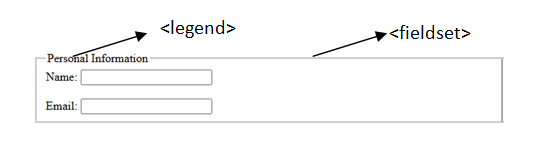
1. <fieldset> Tag
What is <fieldset>?
The <fieldset> tag is used in HTML forms to group related form controls (like inputs, checkboxes, radio buttons, etc.) inside a box with a border. It is mainly used to make the form more readable and organized.
Purpose:
- To visually separate sections within a form.
- To provide a semantic structure to a form, helping assistive technologies (like screen readers).
- It improves user experience and accessibility.
Syntax:
<fieldset>
<!– Grouped form controls go here –>
</fieldset>
Example:
<form>
  <fieldset>
    <legend>Personal Information</legend>

    <label for="name">Name:</label>
    <input type="text" id="name" name="name">
	<br/><br/>
    <label for="email">Email:</label>
    <input type="email" id="email" name="email">
  </fieldset>
</form>
Key Characteristics:
- Draws a border around the enclosed controls by default.
- Usually used with
<legend>to provide a caption for the group. - Supports nesting, but it’s rarely needed.
2. <legend> Tag
What is <legend>?
The <legend> tag defines a caption or title for the content inside a <fieldset>. It gives users a clear idea about what type of form controls are grouped together.
Purpose:
- To label the group of form elements created with
<fieldset>. - Works as a heading for that section.
- Helps both visual users and screen readers understand the purpose of the grouped fields.
Syntax:
<fieldset>
  <legend>Group Title</legend>
  <!-- Input elements here -->
</fieldset>
Basic Example:
<fieldset>
  <legend>Login Details</legend>

  <label for="username">Username:</label>
  <input type="text" id="username" name="username">

  <label for="password">Password:</label>
  <input type="password" id="password" name="password">
</fieldset>

Rules:
- The
<legend>tag must be the first element inside the<fieldset>. - Can contain inline elements like
<strong>,<em>, but not block-level elements. - Only one
<legend>per<fieldset>is allowed.
Accessibility Benefits
<fieldset>and<legend>improve screen reader compatibility.- They logically group form fields, which is especially helpful for visually impaired users using assistive technologies.
- This structure is recommended by WAI-ARIA guidelines for accessible forms.
Most Important Questions
1. Why do we use <fieldset> when we can group elements using <div> or <section>?
The <fieldset> element is not just a visual container like <div>. It provides semantic meaning to the grouped form controls. When form controls are wrapped inside a <fieldset>, screen readers and assistive technologies recognize that these controls are related. This improves the accessibility and structure of the form. In contrast, <div> and <section> do not have this built-in association with form inputs.
2. Is the use of <legend> mandatory inside <fieldset>, and what happens if it is not used?
The <legend> tag is optional, meaning the browser will not show any error if it is not present. However, <legend> gives a title or label to the group of form controls inside the <fieldset>. Without it, users and screen readers may not easily understand the purpose of the grouped fields. So while it is not technically required, it is strongly recommended for better understanding and accessibility.
3. What happens if multiple <legend> tags are written inside a single <fieldset>?
Only the first <legend> tag inside a <fieldset> will be used by the browser and assistive technologies. The rest of the <legend> tags will be ignored or treated as plain content. According to HTML specifications, a <fieldset> must contain only one legend element, and it should be placed as the first child of the <fieldset> for proper structure.
4. Can we nest one <fieldset> inside another <fieldset>? If yes, how does the browser treat it?
Yes, you can place one <fieldset> inside another. HTML allows nesting of <fieldset> elements. The browser will render each <fieldset> with its own border and grouping. This is useful when you have subsections within a larger form section. For example, inside a “User Info” <fieldset>, you could have a nested <fieldset> for “Contact Details”.
5. Is it valid HTML to place the <legend> outside the <fieldset> but still visually refer to the fieldset content?
No, placing <legend> outside of <fieldset> is invalid HTML. The <legend> must be the first element inside a <fieldset>. If placed outside, it will be treated as a regular block or inline element, and its connection to the <fieldset> will be lost. This affects both visual rendering and screen reader interpretation.
6. Can a <fieldset> be used without any input elements inside it?
Yes, a <fieldset> can exist without any form inputs inside it. However, its main purpose is to group form controls, so if there are no form elements inside, the <fieldset> serves little purpose. It may be valid HTML, but it is not meaningful unless it actually contains inputs, labels, checkboxes, etc.
7. What is the difference in behavior between placing a <legend> at the top, middle, or end of a <fieldset>?
Technically, a <legend> should always be the first child element of the <fieldset>. Placing it elsewhere can lead to inconsistent behavior across browsers. Some browsers may still render it, but accessibility tools and screen readers may not associate it properly with the fieldset. To follow best practices, it should be the very first thing inside <fieldset>.
8. Does <fieldset> affect form submission in any way, like grouping or isolating data?
No, the <fieldset> tag does not change how the form data is submitted. It is purely for grouping and structuring the layout of the form. The input elements inside the <fieldset> are still part of the full form and their data will be submitted with the rest of the form fields.
9. Can you use inline elements like <span> or <a> inside a <legend>?
Yes, inline elements like <span>, <strong>, <em>, and <a> are allowed inside <legend>. However, block-level elements like <div>, <p>, or <table> are not valid inside a <legend>. The idea is to keep the content of the <legend> simple and short, usually as a brief label or sentence.
10. What is the default behavior of a browser when it encounters a <fieldset> with a <legend>?
When a browser renders a <fieldset> with a <legend>, it creates a bordered box around the form controls inside the <fieldset>, and places the <legend> inset at the top edge of the box. The <legend> visually appears to cut into the border, making it clear that it is the title of that group. This default behavior helps users visually understand that the grouped elements are part of a single category or purpose.