
Pseudo-Element Selectors
pseudo-element selectors are used to style specific parts of an HTML element.
That means: You don’t need to change your HTML or add extra elements — CSS will automatically create a virtual (pseudo) element and apply the style.
We use pseudo-elements when we want to style things like:
• Adding content before or after an element’s real content,
• Styling the first letter or the first line of text inside an element,
• Applying special effects to specific parts of elements without changing HTML,
• Highlighting selection made by the user (when they select text).

What is a Pseudo-element?
A pseudo-element is a special keyword in CSS that allows you to style a specific part of an element’s content or create new content virtually, without adding extra HTML tags.
In simple terms, a pseudo-element creates a virtual part inside the element that can be styled using CSS.
This virtual part:
- Does not exist in the actual HTML code.
- Is generated by CSS only.
- Can be used for decoration, styling, or inserting text or symbols.
General Syntax:
selector::pseudo-element {
  property: value;
}
The double colon :: is the standard modern syntax.
Older versions of CSS used a single colon : for some pseudo-elements, but double colon is now preferred for clarity.
Pseudo Elements are
::after::before::first-letter::first-line::selection::backdrop::placeholder::marker::file-selector-button::cue::cue-region::slotted()::part()::spelling-error::grammar-error
::before
It adds virtual content before an element’s actual content.
This content is not present in the HTML; it’s generated by CSS.
Used for icons, labels, or extra text before elements.
Syntax:
selector::before {
content: “text or symbol”;
}
Example:
/* CSS */
p::before {
  content: "Note: ";
  color: red;
}
<!-- HTML -->
<p>This is important.</p>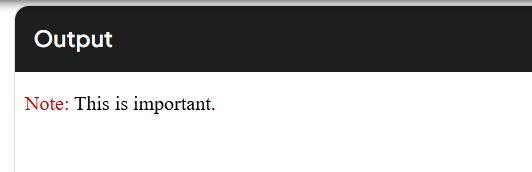
It will display “Note: “ before the paragraph’s text.
::after
It adds virtual content after an element’s content.
Again, this is not present in the HTML.
Commonly used for decorations like dots, icons, or extra notes.
Syntax:
selector::after {
  content: "extra";
}
Example:
p::after {
  content: " ✔";
}
<!-- HTML -->
<p>Task completed</p>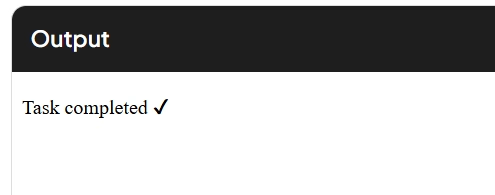
It will show a check mark after the paragraph.
::first-letter
Targets only the first letter of an element’s text content.
Often used for stylized text, such as making the first letter big.
Example:
p::first-letter {
  font-size: 200%;
  color: blue;
}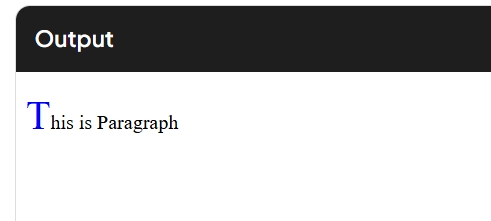
Only the first letter of the paragraph becomes large and blue.
::first-line
Targets only the first line of an element’s text, depending on how text wraps.
Used for highlighting or styling the first visible line.
Example:
p::first-line {
  font-weight: bold;
}
Only the first line of text becomes bold.
::selection
Styles the part of the text that the user selects with the mouse or keyboard.
Example:
p::selection {
  background: yellow;
  color: black;
}
When you select the text, it gets a yellow background.
::backdrop
::backdrop is a very special CSS pseudo-element that helps you change the background behind some elements, like popups or fullscreen items.
For example, when you use the <dialog> tag to create a popup box on your website and you open it using JavaScript, the area behind that popup becomes the “backdrop”. This backdrop is like a background layer behind the popup.
You can use ::backdrop to change how this background looks. You can make it dark, you can blur it, or you can even show a different color or design behind it.
Example:
dialog::backdrop {
  background-color: rgba(0, 0, 0, 0.5);
}
::placeholder
Styles the placeholder text in input or textarea fields.
Example:
input::placeholder {
  color: gray;
  font-style: italic;
}
::marker
Targets the bullet or number in lists (<ul>, <ol>).
Example:
li::marker {
  color: red;
}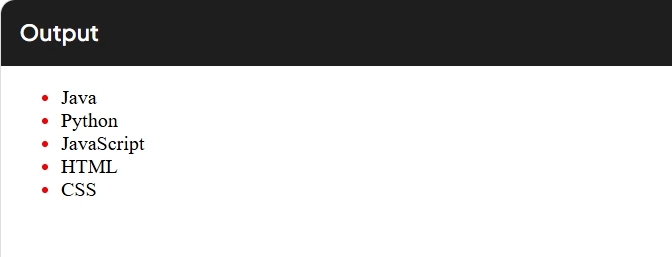
Only the bullet or number becomes red.
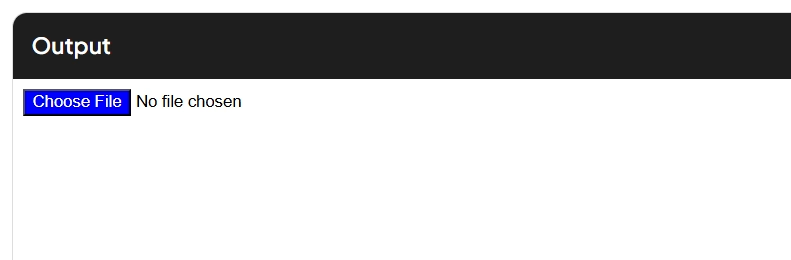
::file-selector-button
::file-selector-button is a CSS pseudo-element that lets you style the “Choose File” button inside file upload inputs (<input type="file">).
With this, you can change the button’s color, font, padding, border, and more to match your website’s design.
Example:
input::file-selector-button {
  background-color: blue;
  color: white;
}
Most important Questions
Why is the content property mandatory for ::before and ::after pseudo-elements, and what happens if you do not use it?
The ::before and ::after pseudo-elements are designed to generate virtual content inside an element. They do not have any effect unless you explicitly define the content property in CSS.
Without the content property, the pseudo-element is created, but it remains invisible because there is nothing to display.
The content property tells the browser what to insert in the pseudo-element, which could be:
- Text
- Unicode characters
- Images via
url() - Empty string (for decoration only)
If you skip content, even if you apply other styles (like background, borders), nothing will show up.
How does ::first-letter handle punctuation, and what is its typical use case in web design?
The ::first-letter pseudo-element targets the very first letter of an element’s text content, including leading punctuation such as quotation marks, commas, or brackets.
The actual behavior depends on the browser and the type of punctuation. Most browsers follow typographic conventions and may exclude or include certain characters automatically.
Common use cases:
- Creating drop caps in articles or blogs, where the first letter of a paragraph appears larger or stylized.
- Making headings or introductory sentences visually appealing.
Developers must test their designs with punctuation marks to ensure consistency across browsers.
What is the difference in behavior between ::first-line and ::first-letter when applied to the same paragraph, and how are conflicts resolved?
::first-line applies styles to the entire first visible line of text, considering text wrapping and layout, while ::first-letter applies styles only to the very first letter.
If both pseudo-elements are applied to the same element, the browser prioritizes ::first-letter inside the area covered by ::first-line.
This means that:
- Styles from
::first-lineapply first to the entire first line. - If
::first-letteralso targets a letter inside that line, it overrides the overlapping part for the first letter only.
This layered approach ensures that both pseudo-elements can coexist without breaking each other’s effect.
Why is ::selection limited in which CSS properties it supports, and what are the allowed properties?
The ::selection pseudo-element styles the text when it is selected by the user.
For security, readability, and performance reasons, browsers limit the CSS properties allowed for ::selection. Otherwise, malicious or poor styling could harm accessibility or cause visual confusion.
Allowed properties typically include:
colorbackground-colortext-shadow(limited support)caret-color(in some browsers)
Properties such as borders, box shadows, or padding are ignored because they could break the layout during selection.
This limitation ensures that text selection remains predictable and consistent across websites.
How does ::backdrop work in the context of the <dialog> element, and why is it important for accessibility?
The ::backdrop pseudo-element styles the background overlay that appears behind modal elements such as <dialog>.
It becomes active automatically when the dialog is displayed using .showModal(). Developers can style it to darken the page behind the dialog, blur the background, or apply colors.
Importance for accessibility:
- It visually separates the active dialog from the rest of the page.
- Helps focus user attention on the dialog.
- Prevents interaction with other page content while the dialog is open.
Without proper backdrop styling, users may find it difficult to identify which part of the page is currently interactive.
How does ::placeholder behave differently from value text inside form fields, and how can it affect user experience?
The ::placeholder pseudo-element styles the placeholder text inside input or textarea fields.
Key differences:
- Placeholder text disappears when the user types something inside the field.
- Placeholder text is usually lighter and not meant for important information.
- It cannot replace proper labels for accessibility.
Misusing placeholder text as a label may cause accessibility issues because screen readers may not announce placeholders reliably.
Proper use improves form usability, but developers must use clear, short hints and maintain good contrast for readability.
Explain how ::marker works and why it is safer than using background images for customizing list bullets or numbers.
The ::marker pseudo-element styles the marker (bullet, number, or symbol) of list items in <ul> or <ol>.
Advantages:
- Directly targets the actual list marker without affecting the list item’s content.
- Supports color, font, and limited content replacement.
- Cleaner and more semantic compared to hacks like replacing bullets with background images or additional HTML.
This makes it safer and more reliable for accessibility, since the underlying list structure remains intact for screen readers and keyboard navigation.
How does ::file-selector-button enhance file input styling, and what are its limitations?
The ::file-selector-button pseudo-element styles the button inside <input type="file"> fields.
Before this pseudo-element existed, customizing file input buttons was difficult and inconsistent across browsers.
Now, developers can control:
- Background color
- Text color
- Borders
- Padding
- Fonts
Limitations:
- Cannot style the entire file input field.
- Only styles the button part; the text area showing the selected file remains outside its scope.
- Cross-browser differences still exist, requiring testing.
It improves design flexibility without compromising the basic file selection functionality.
Can you explain the stacking order and interaction behavior between ::before, ::after, and actual content in terms of CSS rendering?
In CSS, ::before and ::after pseudo-elements are considered part of the element’s rendering tree.
::beforeappears before the actual content of the element.::afterappears after the content.- Both can be layered visually using
position,z-index, anddisplayproperties.
By default:
::beforeis rendered first.- Actual content comes next.
::aftercomes last.
However, if developers use position: absolute or position: relative, the pseudo-elements can overlap and be reordered visually using z-index.
This stacking behavior allows flexible layering effects such as borders, badges, ribbons, and overlays.
In large projects, what are common performance risks or mistakes when using pseudo-elements like ::before and ::after excessively?
While ::before and ::after are useful for decorations and content generation, using them excessively can introduce performance issues in large projects.
Common mistakes include:
- Overusing them for every visual detail instead of using proper HTML structure.
- Creating complex animations or transitions purely with pseudo-elements.
- Nesting pseudo-elements deeply with unnecessary
positionandz-indexlayers. - Forgetting that pseudo-elements also participate in layout calculations, repainting, and reflow operations.
Best practices:
- Use them only for small, lightweight content or decorations.
- Avoid overcomplicating the CSS with multiple layers of pseudo-elements unless necessary.
- Test performance on lower-end devices for complex interfaces.