
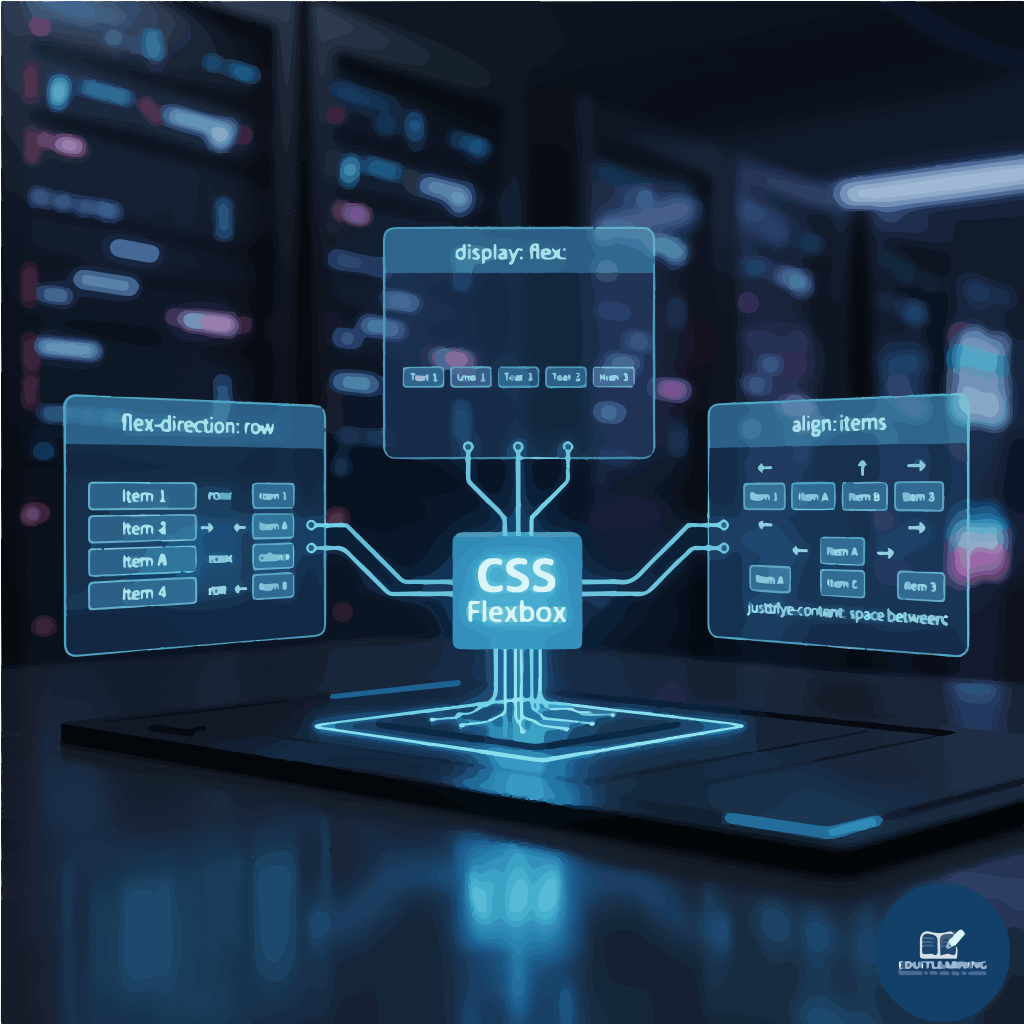
CSS Flexbox
Its job is to arrange the elements (child items) inside a container in a smart and flexible way. In the past, we used floats, inline-blocks, and tables for layout, but achieving perfect alignment and a responsive design was very difficult.
Flexbox is specifically designed to control alignment, spacing, and sizing.
Calculator Project Using flexbox: Download

What is Flexbox?
Flexbox stands for Flexible Box Layout.
It is a model that arranges elements within a container in the form of rows or columns. It decides how elements grow (enlarge), shrink, and align (set) according to space. It has two axes:
- Main Axis (the direction in which you are flexing → row or column).
- Cross Axis (the direction perpendicular to the main axis).
Main Axis and Cross Axis
Main Axis
The main axis is the line along which the flex items are arranged (placed one after another).
- By default (flex-direction: row;)
Main axis = horizontal line (from left → right). - If you use flex-direction: row-reverse;
Main axis = horizontal line (but from right → left). - If you use flex-direction: column;
Main axis = vertical line (from top → bottom). - If you use flex-direction: column-reverse;
Main axis = vertical line (but from bottom → top).
Cross Axis
The cross axis is always perpendicular to the main axis. If your main axis is horizontal, the cross axis will be vertical. If your main axis is vertical, the cross axis will be horizontal.
So:
If flex-direction: row, Main = left-right, Cross = top-bottom.
If flex-direction: column, Main = top-bottom, Cross = left-right.
The Main Axis is controlled via the justify-content property (aligns items along the main axis).
The Cross Axis is controlled via align-items or align-content (aligns items along the cross axis).
.container {
  display: flex;
  flex-direction: row;        /* Main Axis = horizontal */
  justify-content: center;    /* Control on main axis */
  align-items: center;        /* Control on cross axis */
}
Here justify-content will center the items horizontally (right axis) and align-items will center the items vertically (cross axis).

Flex Container
When you add display: flex; to a parent element (say a <div>), it becomes a flex container.
Flex Container properties:
- flex-direction → In which direction the items will be aligned (row or column).
- justify-content → Aligns the items according to the main axis (row/column).
- align-items → Aligns the items along the cross axis.
- flex-wrap → Decides whether the items will stick to one line or wrap to the next.
- align-content → Controls the spacing between multiple lines.
Flex Container = Parent which sets the rules.
Flex Items
Direct children of a container are automatically created as Flex Items.
Properties of Flex Items:
- flex-grow → How much the item will grow compared to the rest.
- flex-shrink → How much it will shrink if space is limited.
- flex-basis → What will be the initial size of the item.
- align-self → A single item can have its own unique alignment.
- order → You can change the order of items without changing the HTML.
Flex Items = Children that follow the parent’s rules and can also set their own rules.

Flex Container Properties:
display: flex
When you apply display: flex; to a parent element (say, a <div>):
- This element becomes a Flex Container.
- Its direct children automatically become Flex Items.
- These children no longer behave like normal block/inline, but instead follow Flexbox rules.
- Only direct children become flex items; grandchildren (other elements inside) are not directly affected.
display: inline-flex
This is exactly the same as display: flex;, with one difference.
- display: flex; → The container becomes a block-level element (taking up the full width).
- display: inline-flex; → The container becomes an inline-level element (taking up only the required space, behaving like an inline element).
.parent1 {
  display: flex;   /* Block level container */
}
.parent2 {
  display: inline-flex; /* Inline level container */
}
If you write both in one line, the flex one will cover the entire line, while the inline-flex one will take only the space equal to its content.
Default Behavior of Flex Container
When you apply display: flex; (or display: inline-flex;):
- By default, Flexbox creates a single-line (row) layout.
- By default (
flex-wrap: nowrap), all children stay in a single line. Ifflex-wrap: wrapis applied, children can flow into multiple lines. - If the container runs out of space, children will shrink but will not be moved to a new line.
- This behavior is controlled by the property: flex-wrap.
Default Value
.container {
  display: flex;
  flex-wrap: nowrap;  /* Default value */
}
nowrap means: All items will remain in a single row, they will not wrap. If space becomes insufficient, the items will shrink to accommodate, but there will be no line break.
If you want to wrap
If you want children to appear on multiple rows (if space is limited), you would write:
.container {
display: flex;
flex-wrap: wrap;
}
Now, if children do not fit on one line, they will automatically move to the next line.
justify-content
justify-content is a property of the Flex Container.
- It decides how to align the Flex Items along the main axis.
- If flex-direction: row; → Main Axis = horizontal (left → right).
- If flex-direction: column; → Main Axis = vertical (top → bottom).
Values of justify-content
- justify-content: flex-start;:- Default value. Sticks all items to the start of the main axis.
- If the direction is row, items will be placed on the left side.
- If the direction is column, items will be placed on the top side.
- justify-content: flex-end; :- Sticks all items to the end of the main axis.
- Row direction → Items will be moved to the right side.
- Column direction → Items will be moved to the bottom side.
- justify-content: center; :- Moves all items to the center of the axis.
- Equal empty space is created on both the left/right or top/bottom sides.
- justify-content: space-between; :-
- The first item is at the start of the main axis.
- The last item is at the end of the main axis.
- The space between the remaining items is distributed equally.
- There is no extra space between the start and end.
- justify-content: space-around; :- Each item is spaced equally on both sides.
- The first item will be spaced to the left and the last item will be spaced to the right.
- The gaps in between appear double (because each item has space on both sides).
- justify-content: space-evenly; :- The space between all items and the start/end space are also equal.
- Left, between items, and right → all equal spacing.
- This is the most balanced distribution.
Example: Navigation Bar (Navbar) Using Justify-content
<div class="navbar">
  <div class="logo">MyLogo</div>
  <div class="menu">
    <a href="#">Home</a>
    <a href="#">About</a>
    <a href="#">Contact</a>
  </div>
</div>
.navbar {
  display: flex;                  /* Flex Container */
  justify-content: space-between; /* Distribute Items Equally*/
  align-items: center;            /* Vertically center */
  padding: 10px 20px;
  background-color: #222;
}
.logo {
  color: white;
  font-size: 20px;
  font-weight: bold;
}
.menu a {
  color: white;
  margin-left: 20px;
  text-decoration: none;
}- display: flex; → Navbar becomes a flex container.
- justify-content: space-between; →
- First item (.logo) is placed to the beginning.
- Last item (.menu) is placed to the end.
- Equal space is automatically created between the two.
- align-items: center; → Items are perfectly center aligned on the vertical axis (cross axis).
align-items
align-items is a property of the Flex Container. It decides how to align Flex Items along the cross axis.
- Cross Axis = Perpendicular to the Main Axis.
- If flex-direction: row; → Cross Axis = vertical
- If flex-direction: column; → Cross Axis = horizontal
Values of align-items
- align-items: stretch; :- Default value. Items take up the entire space along the cross axis. If height (row direction) or width (column direction) is not defined → they are automatically stretched.
- align-items: flex-start; :- Items are pasted at the beginning of the cross axis.
- Row direction → items top side me
- Column direction → items left side me
- align-items: flex-end; :- Items are pasted at the end of the cross axis.
- Row direction → items bottom side
- Column direction → items right side
- align-items: center; :- Items are aligned to the center of the cross axis.
align-content
align-content is a property of the Flex Container.
- It controls the alignment of entire rows (or columns) along the cross axis.
- It only works when the container contains multiple rows of flex items (flex-wrap: wrap;).
- If the items are in the same row/column, the effect of align-content will not be visible.
You have a flex container containing a large number of items. You have applied flex-wrap: wrap; → Meaning if you run out of space in one row, the items will move to the next row. Now the question is how will these rows be aligned cross-axis? This is done by align-content.
Values of align-content
- flex-start: – Items/rows align to the start of the cross-axis (top if direction is row, left if direction is column).
- flex-end: – Items/rows align to the end of the cross-axis (bottom if direction is row, right if direction is column).
- Center: – All rows are vertically aligned in the middle of the container.
- space-between: – First row at the start, last row at the end. Spacing of rows in between is equal.
- space-around: – Each row has equal space around it. There is also a little space at the top and bottom.
- Stretch: – Rows occupy the entire height of the container. Automatically stretch and fill any gaps.
Example: Gallery of Cards
Suppose you have a photo gallery with multiple cards.
- Container = Gallery area
- Items = Cards (images + title)
You want:
1. Cards aligned vertically (cross axis) → align-items
2. If multiple rows are created → row spacing aligned → align-content
<style>
  .gallery {
  display: flex;          /* Flex Container */
  flex-wrap: wrap;        /* Multiple rows allow */
  width: 500px;
  height: 300px;          /* Fixed container height to see align-content effect */
  border: 2px solid black;
  /* Cross axis alignment */
  align-items: center;    /* Each row items vertical alignment */
  align-content: space-between;  /* Multiple rows spacing */
}
.card {
  width: 100px;
  height: 50px;
  margin: 5px;
  background-color: lightblue;
  text-align: center;
  line-height: 50px;
}
</style>
<div class="gallery">
  <div class="card">1</div>
  <div class="card">2</div>
  <div class="card">3</div>
  <div class="card">4</div>
  <div class="card">5</div>
  <div class="card">6</div>
</div>- flex-wrap: wrap; → If 3 cards fit in one row, the rest will be played in the next row.
- align-items: center; → The items of each row are aligned vertically in the center.
- align-content: space-between; → If there are multiple rows:
- at the top of the first row container
- Last row at the bottom of the container
- The spacing of beech rows is equal
Flex Item Properties
These properties control the behavior of the flex container’s children (flex items).
order
Normally, the order displayed is the order written in HTML. But using the order property, you can change the position of items without changing the HTML.
- The default order for all items is 0.
- The smallest value will appear first.
- If the values are the same, the HTML order will follow.
Example:
.item1 { order: 2; }
.item2 { order: 1; }
.item3 { order: 3; }
Now the Item position will be: Item2, Item1, Item3
flex-grow
If there is extra space in the container, use flex-grow to determine which item will occupy how much space.
- The default value is flex-grow: 0; meaning items will not grow.
- If one item’s growth is 1 and the other’s is 2, the second item will take up double the space.
Example:
.item1 { flex-grow: 1; }
.item2 { flex-grow: 2; }
The extra space will be divided into three parts:
- Item1 will receive 1 part
- Item2 will receive 2 parts
flex-shrink
When there is limited space in the container and the items do not fit, this property determines how much each item will shrink.
- The default value is flex-shrink: 1; meaning the item will shrink if necessary.
- If an item’s shrink is 0, it will not shrink; the remaining items will adjust.
Example:
.item1 { flex-shrink: 1; }
.item2 { flex-shrink: 0; }
Item1 will shrink, while Item2 will remain at its original size.
flex-basis
This determines the starting size of an item (before it grows/shrinks). It works like width/height (depending on the main axis).
The default value is auto → the item will be sized based on the content or width/height.
Example:
.item1 { flex-basis: 200px; }
.item2 { flex-basis: 100px; }
Item1’s base size = 200px, Item2’s base size = 100px.
Grow/shrink will then be applied.
Example:
<div class="container">
    <div class="item basis">flex-basis: 300px</div>
    <div class="item grow">flex-grow: 2</div>
    <div class="item shrink">flex-shrink: 3</div>
  </div>
.container {
      display: flex;
      border: 3px solid black;
      width: 800px;  /* Parent width fixed */
      margin: 20px auto;
    }
    .item {
      margin: 5px;
      text-align: center;
      font-size: 18px;
      background: lightblue;
    }
    .basis {
      flex-basis: 300px; /* Starting width 300px */
      background: lightgreen;
    }
    .grow {
      flex-grow: 2; /* Extra space will take up more */
      background: lightcoral;
    }
    .shrink {
      flex-shrink: 3; /* If the container is small, it will shrink first. */
      flex-basis: 250px;
      background: lightsalmon;
    }
flex
- This is shorthand for flex-grow flex-shrink flex-basis.
- It is used to write three properties in one line.
Example:
.item1 { flex: 1 0 150px; }Meaning:
- flex-grow: 1 → will grow
- flex-shrink: 0 → will not shrink
- flex-basis: 150px → starting size will be 150px
Common Shortcuts:
- flex: 1; → flex-grow: 1; flex-shrink: 1; flex-basis: 0%
- flex:auto; → flex-grow: 1; flex-shrink: 1; flex-basis: auto
- flex:none; → flex-grow: 0; flex-shrink: 0; flex-basis: auto
align-self
This property controls the alignment of a single flex item along the cross-axis. Means: align-items aligns all items at the container level, but align-self overrides the alignment of a specific item.
Values of align-self
- align-self: auto; :- Default value. Means item will follow the value of align-items of its parent container. If container align-items: center; → item will also be in the center.
- align-self: flex-start; :- This item will be placed at the beginning of the cross-axis. If the axis is vertical (row layout) → the item will be placed at the top.
- align-self: flex-end; :- This item will be moved to the end of the cross-axis. If the axis is vertical → the item will be moved to the bottom.
- align-self: center; :- This item will be centered on the cross-axis. Example: If other items are at the top or bottom, this item will be centered.
Example:
<div class="container">
    <div class="item auto">auto</div>
    <div class="item start">flex-start</div>
    <div class="item end">flex-end</div>
    <div class="item center">center</div>
    <div class="item baseline">baseline</div>
    <div class="item stretch">stretch</div>
  </div>
.container {
      display: flex;
      border: 3px solid black;
      height: 200px; /* Fixed height of container*/
      align-items: stretch; /* Default behaviour for items */
    }
    .item {
      flex: 1;
      margin: 5px;
      background: lightblue;
      text-align: center;
      font-size: 20px;
    }
    .auto       { align-self: auto; }
    .start      { align-self: flex-start; }
    .end        { align-self: flex-end; }
    .center     { align-self: center; }
    .baseline   { align-self: baseline; font-size: 40px; } /* Large text for effect */
    .stretch    { align-self: stretch; } /* Fills full height */