
Git Basics
- Repository
- Local Repository
- Remote Repository
- Working Directory
- .git Folder
- Staging Area
- Stage
- Index
- Tracked File
- Untracked File
- Commit
- Commit ID
- Commit Hash
- Branch
- HEAD
- Clone
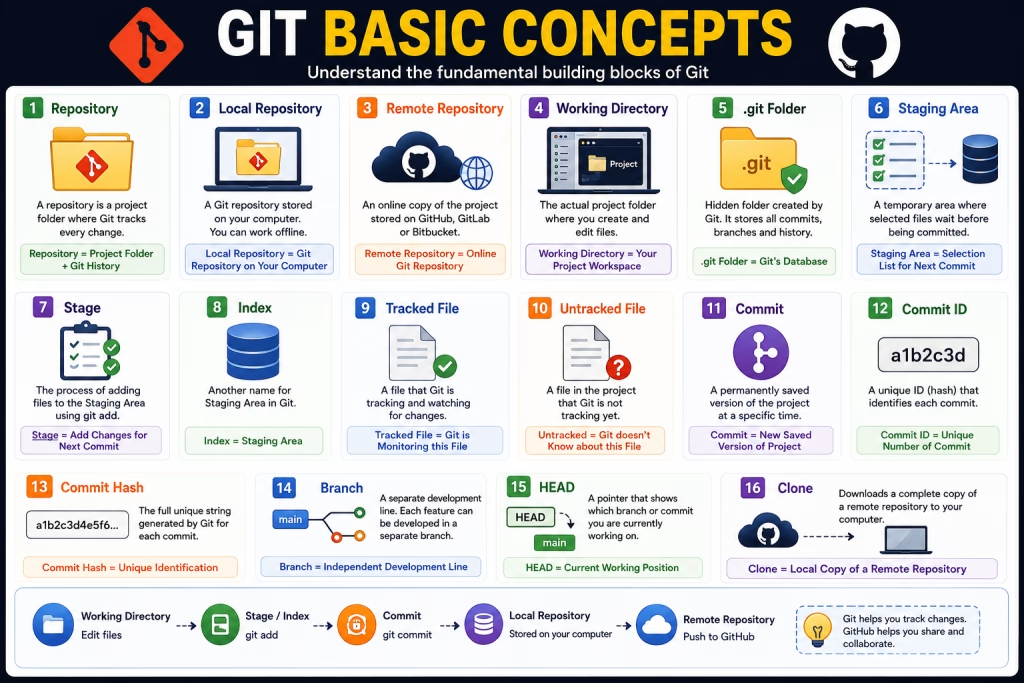
Repository
A normal folder simply stores files. However, Git doesn’t know when or what changes occurred to the files.
That’s why a repository is used. It allows Git to track every change to the project.
What is a Repository?
A repository is a normal project folder in which Git is initialized.
When you run the git init command, Git creates a hidden .git folder within that folder. This folder stores commits, branches, and the project’s complete history.
Repository = Project Folder + Git History
Local Repository
It is not necessary to always have internet available while coding.
Therefore, Git stores a complete copy of the project on your computer, allowing you to work offline.
A Local Repository is a Git repository stored on your computer.
This is where you create files, make commits, and manage branches.
Local Repository = Git Repository on Your Computer
Remote Repository
If the project is only on your computer, other developers cannot work on it. That’s why the project is stored online.
A remote repository is an online copy of a project. It’s stored on platforms like GitHub, GitLab, or Bitbucket.
It allows team members to work together on the same project.
Remote Repository = Online Git Repository
Staging Area (Stage / Index)
Suppose there are 20 files in the project and you made changes to 5 files.
But now you only want to commit 2 files.
If there was no Staging Area, Git would commit all the modified files at once. So Git first asks you which files to include in the next version.
The Staging Area is a temporary area in Git where selected files are stored before a commit. Only files that have been staged will be saved in the next commit.
Staging Area = Selection List of what will be saved in the next commit
Tracked File
Git must know which files to maintain a history of.
A file that Git is tracking is called a Tracked File. It usually becomes tracked after a git add and commit.
Tracked File = Git is monitoring this file.
Untracked File
Git doesn’t automatically track every new file.
The developer decides which files will be part of the repository.
A file that is in the project but Git isn’t tracking yet is an Untracked File.
Untracked = Git doesn’t know about this file yet.
Commit
If every change to the code was simply saved and there was no history, restoring old working code would be difficult.
That’s why Git uses Commit. Every Commit creates a new version of the project.
A Commit is a permanently saved version of the project.
After every Commit, Git creates a new version of the project and assigns that version a unique Commit ID.
Commit = New Saved Version of Project
Commit ID (Hash)
There are many commits in a repository.
Git generates a unique ID to uniquely identify each commit.
The Commit ID (Hash) is the unique identification number for each commit.
It allows identifying or restoring a specific version.
Commit ID = Unique Number of Commit
Branch
If a new feature is created directly in the main project and a bug occurs, the entire project could be affected.
That’s why a separate working line is created.
A branch is a separate development line of a project. Each feature can be developed in a separate branch.
Branch = Independent Development Line
HEAD
Git needs to know which branch or commit you are currently working on.
HEAD is a pointer that points to the current active branch or current commit.
HEAD = Current Working Position
Clone
If a project is on GitHub, a clone is needed to copy it to your computer.
A clone downloads a complete copy of a remote repository to a local repository.
After cloning, the project can be worked on locally.
Clone = Creating a Local Copy of a Remote Repository