
Git Repository and Basic Git Workflow
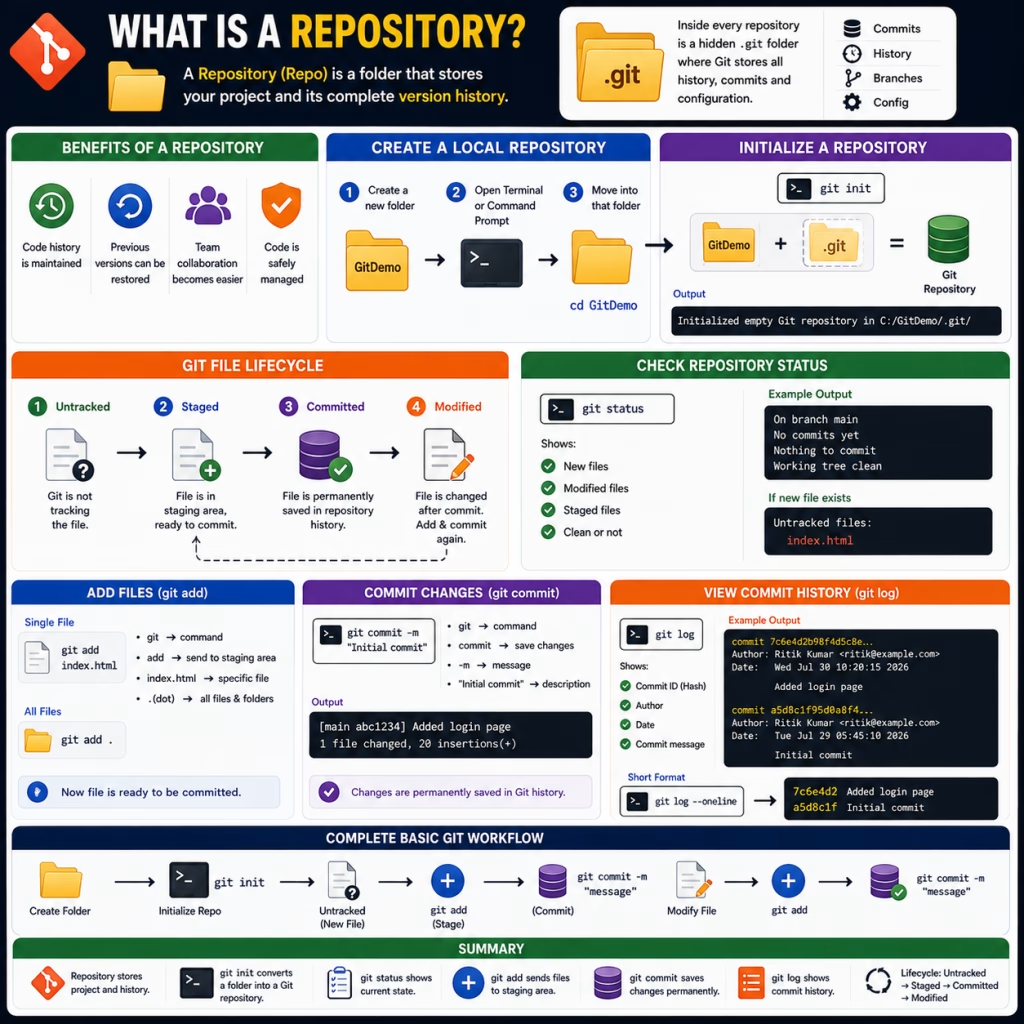
What is a Repository?
A Repository (Repo) is a folder that stores your project and its complete version history.
In simple terms, a Repository is a place where Git manages project files and their changes.
Within every repository is a hidden .git folder. In this folder, Git stores the project’s complete history, commits, and configuration.
Create a Local Repository
A local repository means that the project is managed with Git on your computer.
Step 1: Create a new folder.
GitDemo
Step 2: Open Terminal or Command Prompt.
Step 3: Move into that folder.
cd GitDemoNow the folder is ready to create a Git repository.
Initialize a Repository (git init)
The git init command is used to create a repository.
Git does not understand normal folders.
git init converts that folder into a Git repository.
git init- git → Executes the Git command.
- init → Creates a new Git repository in the current folder.
Output
Initialized empty Git repository in C:/GitDemo/.git/Now GitDemo has become a Git repository.
Git File Lifecycle
Git manages each file in different stages. This process is called the Git File Lifecycle.
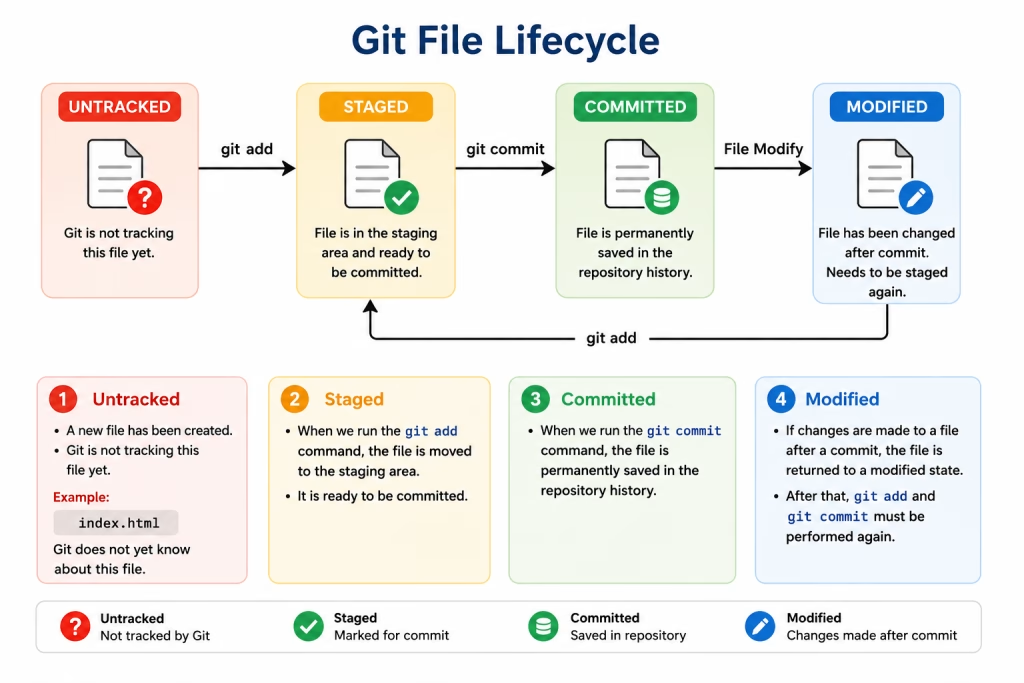
1. Untracked
A new file has been created. Git is not tracking this file yet.
2. Staged
When we run the git add command, the file is moved to the staging area.
It is ready to be committed.
3. Committed
When we run a git commit, the file is permanently saved in the repository history.
4. Modified
If changes are made to a file after a commit, the file is returned to a modified state.
After that, git add and git commit must be performed again.
Check Repository Status (git status)
The git status command shows the current status of the repository.
This is the most commonly used Git command.
This command shows:
- Which files are new.
- Which files are modified.
- Which files are ready for commit.
- Whether the working tree is clean or not.
git status- git → Executes a Git command.
- status → Shows the current status of the repository.
Output
On branch main
No commits yet
Nothing to commit
Working tree clean
If there is a new file, the output will be something like this.
Untracked files:
index.html
This means Git is not tracking the file yet.
Add Files (git add)
Git does not automatically commit files.
First, files must be sent to the staging area.
The git add command does this.
Single File
git add index.html- git → Executes the Git command.
- add → Sends the file to the staging area.
- index.html → Specific file.
All Files
git add .- git → Executes a Git command.
- add → Stages files.
- . (dot) → Stages all files and folders in the current folder.
Now the file is ready to be committed.
Commit Changes (git commit)
Commit means permanently saving a snapshot of the project.
A message is written with every commit, explaining what changes have been made.
The commit history helps understand and restore future changes.
git commit -m "Initial commit"- git → Executes a Git command.
- commit → Saves changes.
- -m → Used to provide a commit message.
- “Initial commit” → Commit description.
Output
[main abc1234] Added login page
1 file changed, 20 insertions (+)
Now the changes are permanently saved in the Git history.
View Commit History (git log)
The git log command is used to view all commits in Git.
It tells:
- How many commits have been made.
- Who committed.
- When did the commit happen.
- What was the commit message.
- What is the Commit ID.
git log- git → Executes Git commands.
- log → Shows the complete commit history.
Output
commit 7c6e4d2b98f4d5c8e...
Author: Vishal Kumar <vishal@gmail.com>
Date: Wed Jul 30 10:20:15 2026
Added login page
commit a5d8c1f95d0a8f4...
Author: Vishal Kumar <vishal@gmail.com>
Date: Tue Jul 29 05:45:10 2026
Initial commit
Useful Option
If you want to see history in short format, use:
git log --onelineOutput
7c6e4d2 Added login page
a5d8c1f Initial commit
This output is short and easy to read.
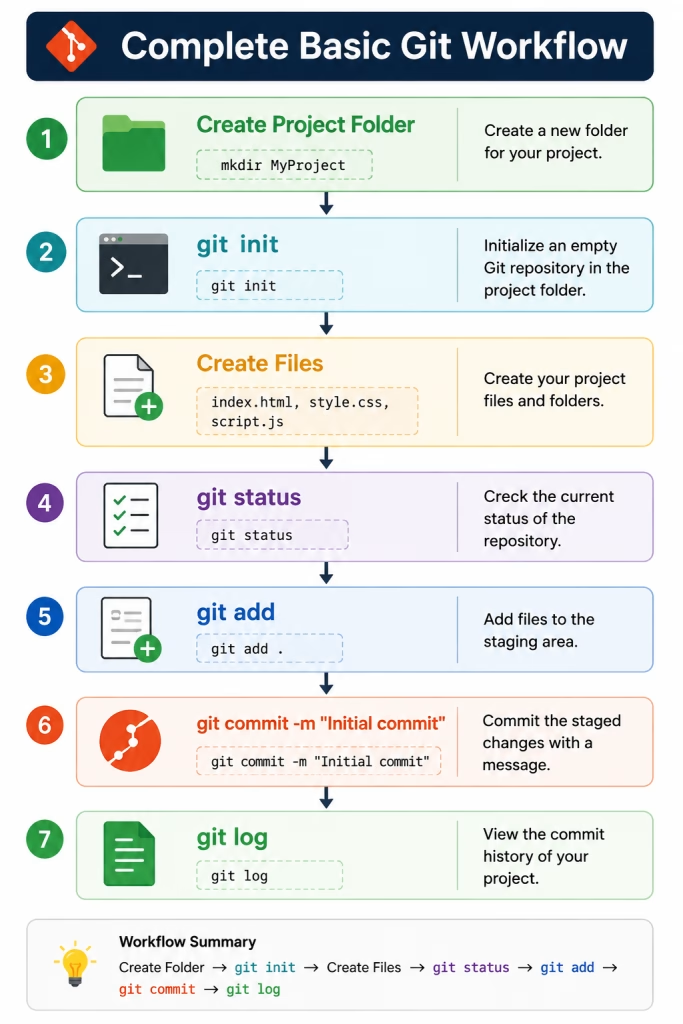
Git Basic Workflow
Summary
- The repository stores the project and its history.
- git init converts a normal folder into a Git repository.
- git status shows the current state of the repository.
- git add sends files to the staging area.
- git commit permanently saves staged changes.
- git log shows the commit history.
- In Git File Lifecycle, files go through Untracked → Staged → Committed → Modified states.