
Git Working with Changes
Git’s main job is to track changes made to files. First, you modify a file, then check the changes, stage the selected changes, and finally commit them to create a new version.
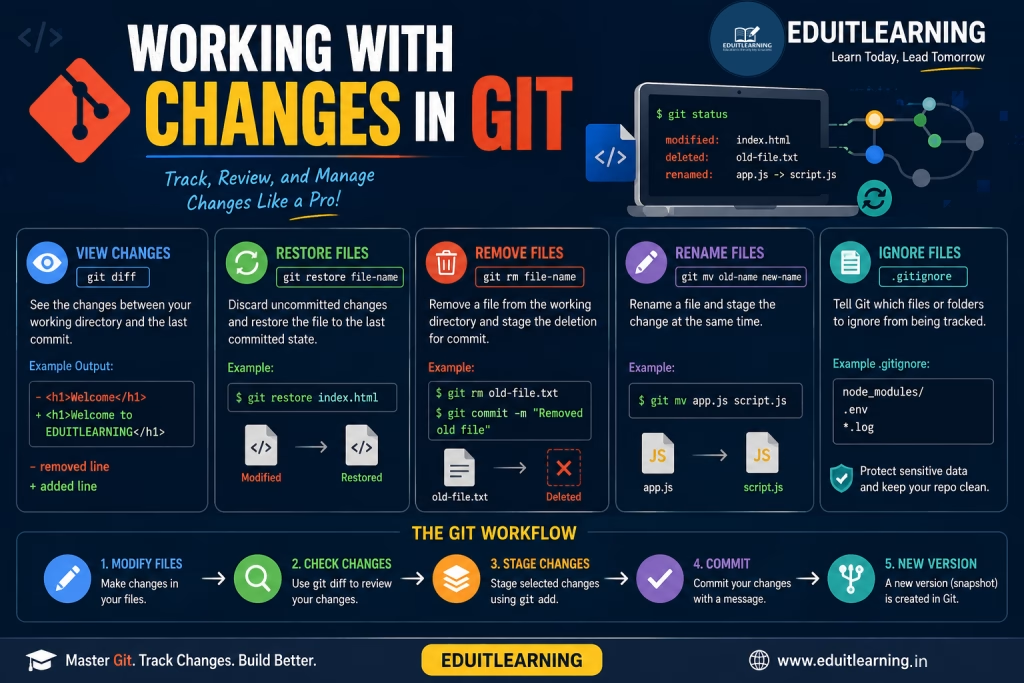
Modify Files
When building a project, writing code once does not mean the work is complete. We often need to:
- Add new code
- Fix bugs
- Change old code
- Update features
If a file is already Tracked by Git and you make changes to it, Git marks it as a Modified File.
Example
First, index.html:
<h1>Welcome</h1>Now change it to:
<h1>Welcome to EDUITLEARNING</h1>The file is now in the Modified state.
To check the file status:
git status
View Changes (git diff)
Sometimes we do not remember exactly what changes we made to a file.
Before creating a commit, it is useful to review all the changes.
What is git diff?
git diff shows the difference between the current changes and the last committed version.
Syntax
git diffExample
Before:
<h1>Welcome</h1>Now:
<h1>Welcome to EDUITLEARNING</h1>git diff output:
- <h1>Welcome</h1>
+ <h1>Welcome to EDUITLEARNING</h1>- – means the old line was removed.
- + means a new line was added.
git diff = View changes before committing
Restore Files
Sometimes we accidentally delete or change code.
If the changes are incorrect and you do not want to commit them, you can restore the file to its last committed version.
What is git restore?
git restore removes uncommitted changes and restores the file to its last committed state.
Syntax
git restore file-nameExample
git restore index.htmlNow, the uncommitted changes in index.html will be removed.
Important: After restoring, the uncommitted changes cannot be recovered easily.
git restore = Remove current changes and go back to the last version
Remove Files (git rm)
If a file is no longer needed in a project, it can be removed.
Normal deletion can delete the file, but Git may need to be informed separately.
What is git rm?
git rm removes a file from both the Working Directory and the Staging Area.
Therefore, after the next commit, the file will also be removed from Git’s new version.
Syntax
git rm file-nameExample
git rm old-file.txtThe file deletion is now staged.
After that:
git commit -m "Removed old file"Git will now create a new version in which old-file.txt no longer exists.
git rm = Delete the file and stage the deletion for commit
Rename Files (git mv)
Sometimes you need to change the name of a file.
For example:
app.js → script.js
What is git mv?
git mv renames a file and stages the rename change in Git at the same time.
Syntax
git mv old-name new-nameExample
git mv app.js script.jsThe file name has now changed, and the change is ready for the next commit.
git commit -m "Renamed app.js to script.js"git mv = Rename + Stage
Ignore Files with .gitignore
Not every file in a project should be saved in a Git repository.
Some files:
- Are temporary
- Are generated automatically
- Contain personal configuration
- May contain sensitive information
Git needs to know which files should not be tracked.
What is .gitignore?
.gitignore is a special file where we write the names of files and folders that Git should ignore.
Example
.gitignore file:
node_modules/
.env
*.log- node_modules/ → The entire folder will be ignored.
- .env → This specific file will be ignored.
- *.log → All files with the .log extension will be ignored.
Why .env is Important?
An .env file can contain passwords, API keys, and database details.
Therefore, it should not be uploaded to GitHub.
.gitignore = Tells Git which files should not be tracked